
Google Search Console is Google’s free tool for website owners, and a Google account is the only thing you need to use it (Google). It has a lot of menus. On my own property, three of them are the ones I open each month, and I’ll walk you through each one below.
What Google Search Console Is, in Plain Words
Before the walk, the plain-words version. Search Console helps anyone with a website understand how they’re performing on Google Search (Google).
One word before we go in, because every menu uses it:
- { property = Google’s word for one website you’ve added to your Search Console account }
The three screens below only report what Google already knows about you, so you can click around freely without changing anything on your site.
Getting In: Add Your Site and Prove It’s Yours
If you followed along with Bing Webmaster Tools, this is the same job over on Google: a different index, still free, and you can start here if you skipped that one. Sign in at search.google.com/search-console with a Google account you own personally, so the property stays yours if a developer moves on. Then:
- Open the property selector dropdown at the top of any Search Console page, then select + Add property (Google).
- Choose Domain or URL-prefix. A Domain property covers every subdomain and protocol of your site, and only a DNS record verifies it; a URL-prefix property covers only addresses starting with the exact prefix you type, and offers several verification methods (Google).
- Pick a verification method, follow the steps shown, then click Verify. If it’ll take you a while, click Verify later to save your place (Google).
- Then give it time. Data should appear in your property within a few days (Google).
If you ever hand this to someone for an audit, give them read access and keep ownership yourself. That’s Google’s own advice in its guide to hiring an SEO (Google), and once you’re in, the first screen is the one that pays.
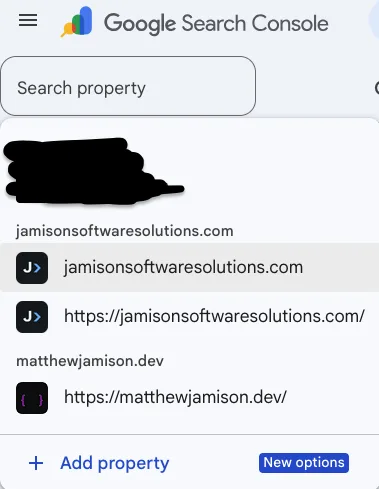
My own property selector, the day this was written. Both verification flavors are visible: the Domain property and the URL-prefix one below it. The black bar is my account email.
Screen 1: Performance, or What People Searched to Find You
This is the screen I give my monthly ten minutes to. Click Performance in the left menu, then open Search results.
Four numbers sit above the chart, and you toggle them on and off by clicking their headings (Google):
- Clicks: how many times someone clicked your site from Google’s results.
- Impressions: how many times your site appeared in results at all.
- CTR: clicks divided by impressions.
- Average position: where your topmost result usually sat.
Below the chart, click the Queries tab. Those are the words people typed, & they’re the reason I open this screen at all.
On my own property this month, the chart read 1.93K impressions against 14 clicks, average position 47.3, with “st louis seo” leading the query list. Impressions far ahead of clicks is the shape I’ve seen on every small site I’ve opened, and that gap says Google already shows you to people who then pick someone else. You’re already in front of them, so the work left is earning the click: write the top three queries down; next month, read whether the position moved.
The default view covers the past three months, and the date filter at the top changes it (Google). If the table comes back empty, widen the range and check again; a new property has nothing to report yet. I’ve made the case for watching impressions before clicks in SEO for startups.
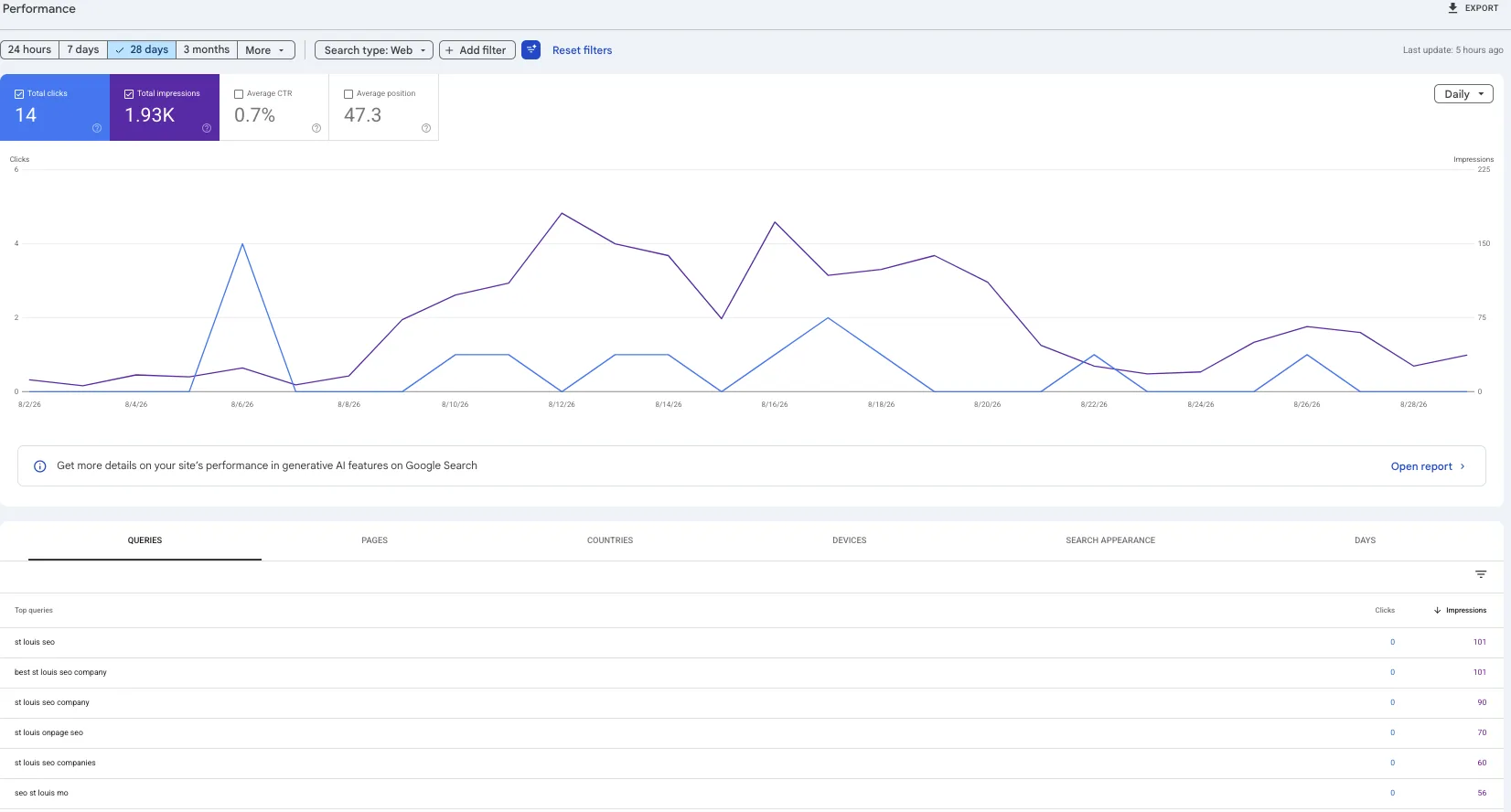
My Performance screen, last 28 days, captured the day this was written. The gap between the purple impressions line and the blue clicks line is the gap this section describes.
Screen 2: The Generative AI Report, or What Google’s AI Answers Show
The caveat first. Google is rolling this report out to a subset of website owners for thorough testing, so plenty of readers will open Performance and find nothing there (Google).
When it is there, it shows impressions for AI Overviews and AI Mode on Google Search (Google), with separate views for each (Google), broken out by device or country (Google). It draws on the same Web search type as screen one, so its numbers line up with what you already read there (Google).
What it withholds: clicks, and a query list. If two of your pages show up in one AI answer, the chart counts a single impression, so totals look smaller than you’d expect (Google).
I’ve already walked through watching those AI visits arrive from the analytics side in how to check your ChatGPT citations. Checking once a month whether the tab has turned up is the job. My own property currently shows 30 impressions across the last 28 days, most of them for the homepage, and that’s the page I keep current first.
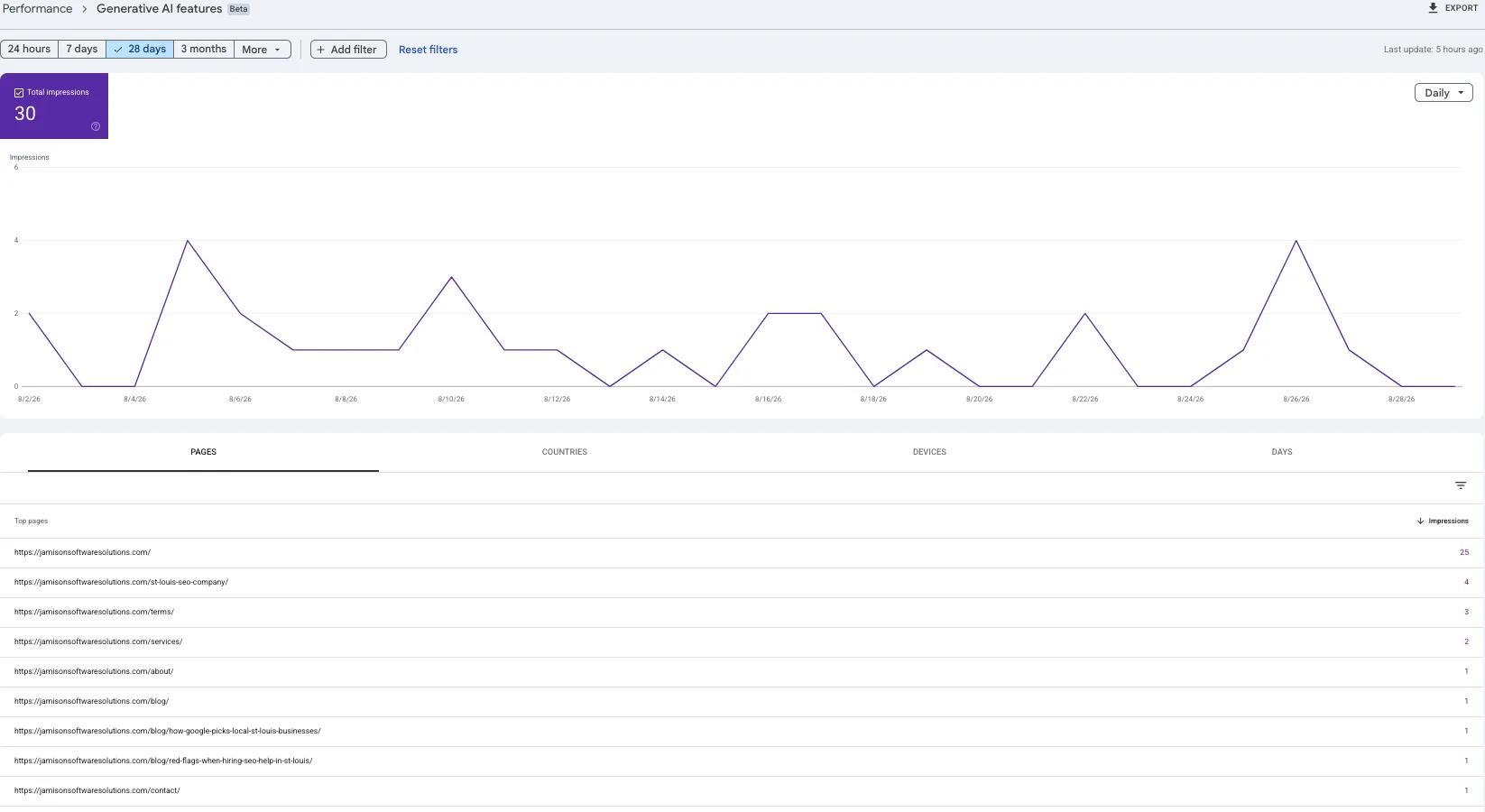
My Generative AI report, still marked Beta, same 28 days. The homepage carries most of the impressions, which tells me which page Google’s AI answers reach for first.
Screen 3: Pages, or Whether Google Has Your Site at All
The third screen answers the question under both of the first two: whether Google has your pages at all. Click Indexing in the left menu, then Pages. You get two counts, indexed and not indexed. Expand a row under the not-indexed list to see the reason.
Plenty of those reasons are fine. A robots.txt rule you meant to write, a noindex tag, a duplicate of another page, or a 404 for something you deleted are all normal (Google). The rows I check are my homepage and my service pages, and I want those two green. For one specific page, use URL Inspection at the top instead (Google).
The walkthroughs I read before writing this skip the next line. Google says if your site has fewer than 500 pages you probably don’t need this report, and suggests searching site:yourdomain.com on Google instead (Google). I open this report only when that count surprises me. Mine shows 97 indexed and 46 not indexed, and the indexed count is the part a plain search would have shown me in ten seconds on a site this size.
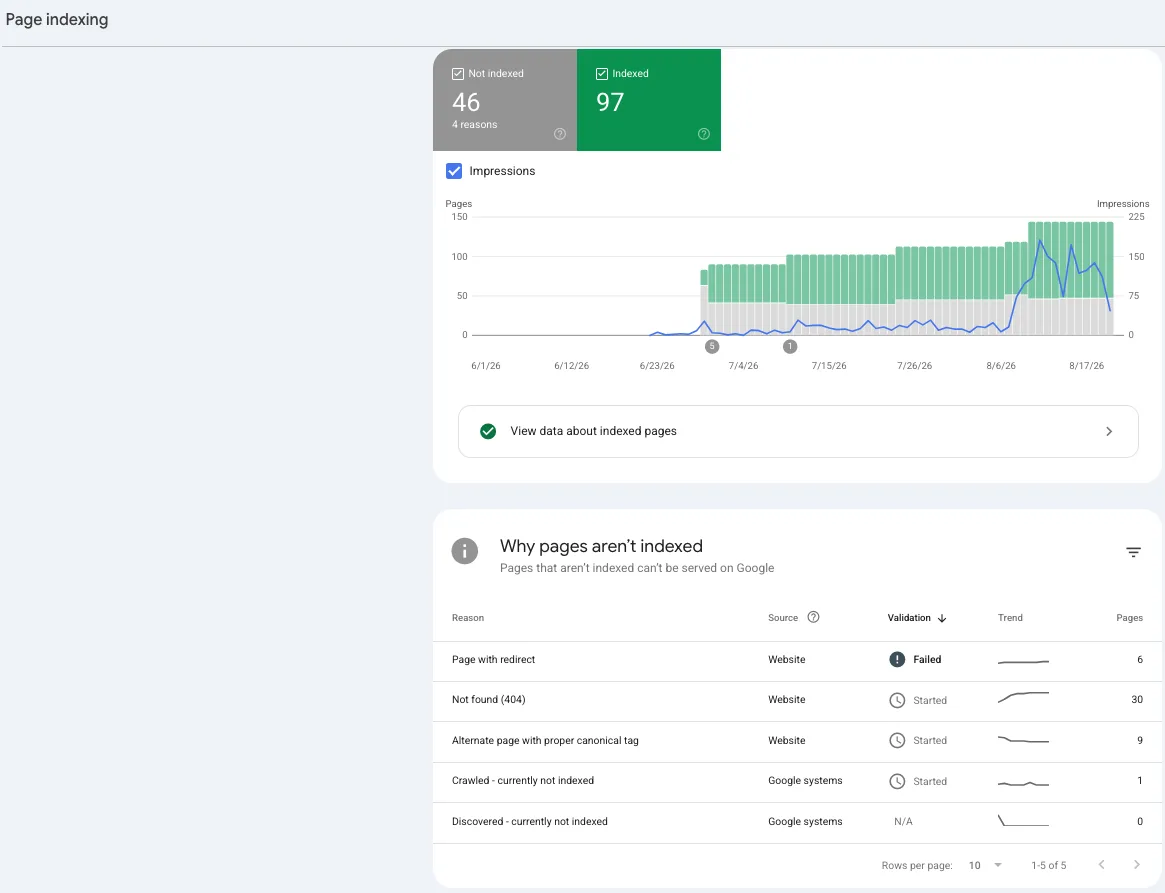
My Page indexing screen. Most of my not-indexed pages are old 404s and redirects, which is the “plenty of those reasons are fine” case from above.
What I Skip, and Why the Longer Guides Don’t
Core Web Vitals, Removals, Change of Address, the structured-data reports, and the Links report all solve problems a site this size hasn’t hit yet. Manual actions and security issues can wait too, because Google emails you when it finds one (Google). Google’s own guidance says many users need only a quick site check-up once a month unless they’re alerted to a problem (Google).
Most of the exhaustive walkthroughs I found while writing this come from companies that sell search software, & a tour of every menu is a reasonable thing for them to write. If you’re the owner doing this between customers, three screens once a month is the version you can keep up with.
FAQ
Can anyone use the Google Search Console? Yes, with one condition. Anyone can open an account, then you verify that you own the website, because Search Console shows information only site owners should see and lets you make changes that affect how your site appears on Google (Google).
Can I use Google Console for free? Yes. Search Console costs nothing, and getting a Google account is the only requirement (Google). Everything in this post lives inside that free account. Appearing in Google’s organic results is free as well (Google).
How do I access Google Search Console? Sign in at search.google.com/search-console with your Google account, then add and verify ownership of your site (Google). Open the property selector, choose + Add property, pick Domain or URL-prefix, and follow the verification steps Google shows you (Google).
What data can you get from the Google Search Console? Clicks, impressions, click-through rate, and average position, grouped by the queries people searched, your pages, countries, devices, and search appearance (Google). Alongside that, which pages Google indexed and why the rest weren’t (Google).
If you’d rather someone read these three screens with you and tell you what to fix first, that’s a consultation: $125 for the hour, and you leave with the list whether or not you hire me afterward. More about how I work is on the St. Louis SEO company page.
Write down today’s numbers before you close the tab. Sixty days from now you’ll be able to see what changed.
I hope this helps.